Players & Roster
How to add a photo to a player
Open the Teams tab, select your team, then tap the three-dot menu (⋯) next to any player's name. Choose Add Photo. Pick an image from your camera roll — you'll get a crop tool to frame it square before saving. The photo appears as a circular avatar next to that player's name in the roster, on player chips during a match, in the stats leaderboard, and on shareable player stat cards.
To remove a photo: tap the same menu and choose Remove Photo.
Tap ⋯ next to a player name to open this menu — Add Photo is the first option
How to star (feature) a player
Tap the three-dot menu next to a player name in the roster and choose Feature Player. This pins them as the highlighted player for the team — their stats appear prominently on the home dashboard and at the top of the stats screen. Useful for parents who want quick access to their child's numbers without scrolling through the full squad list.
To unfeature: tap the menu again and choose Unfeature. Only one player can be featured per team at a time.
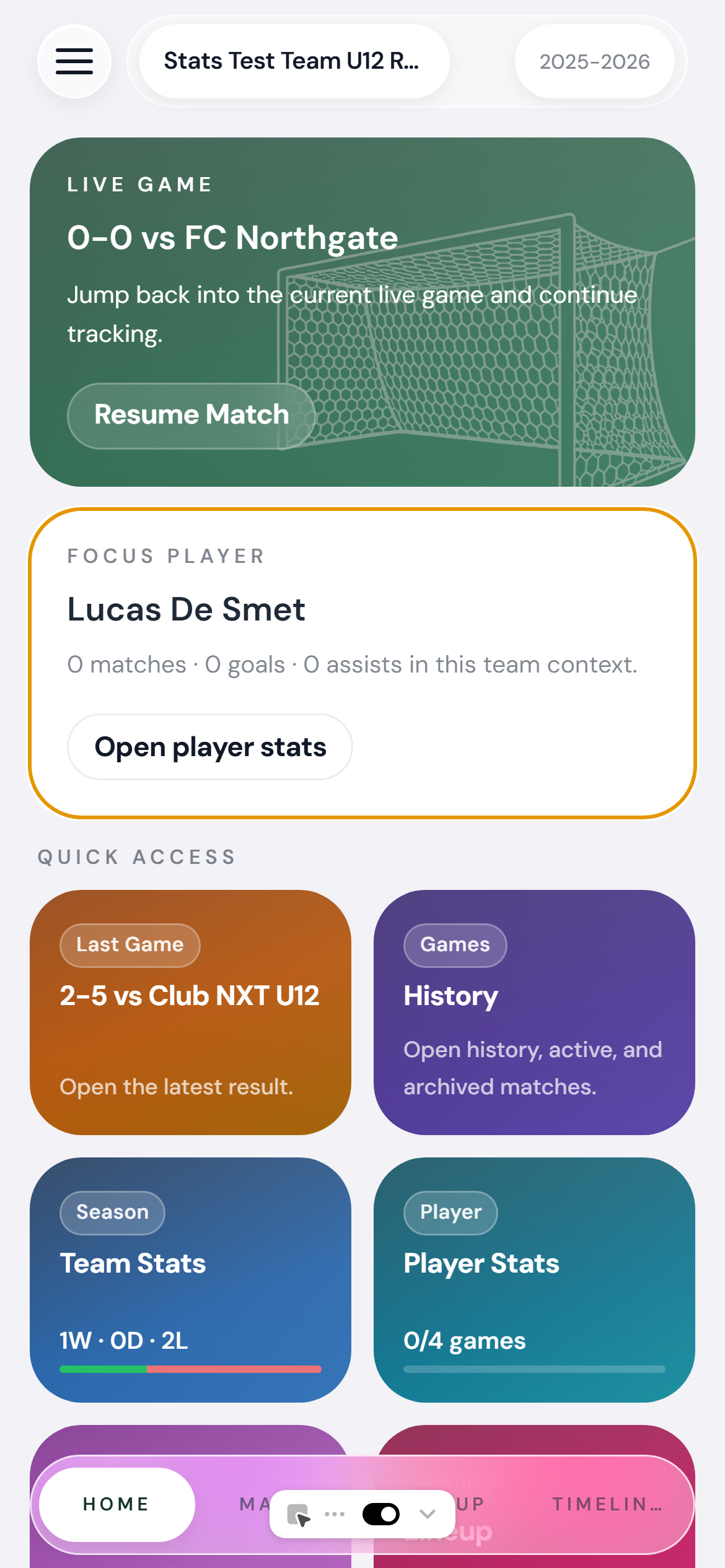
The featured player's stats are pinned to the top of the home screen for instant access
How to rename a player
Open the roster, tap the menu next to the player's current name, and choose Rename. Type the new name and save. The rename propagates through all past game events — so their stats history stays intact under the new name.
How to mark a player as goalkeeper
In the roster, tap the menu next to the player and toggle Goalkeeper. GK players are visually marked with a distinct badge in the lineup screen — making it easy to spot them when setting starters before a game. Check the goalkeeper assignment for each match so the recorded role reflects who actually played in goal.
How to remove a player from the squad
Tap the menu on any player name and choose Remove. This removes them from the squad list and future lineup selections. It does not delete their historical events from past games — their stats stay on record. Check the existing player record before adding the same person again; a matching name alone should not be treated as proof of a linked history.
Games & History
How to archive a game
On the Games screen, tap the three-dot menu on any game card and choose Archive Game. Archived games remain in History and no longer count toward active game slots. They are excluded from the Stats screen and season exports until you unarchive them. The free archive holds up to 5 games.
To restore: tap the menu on an archived game and choose Unarchive. This uses an active slot again, so make sure you have one free.
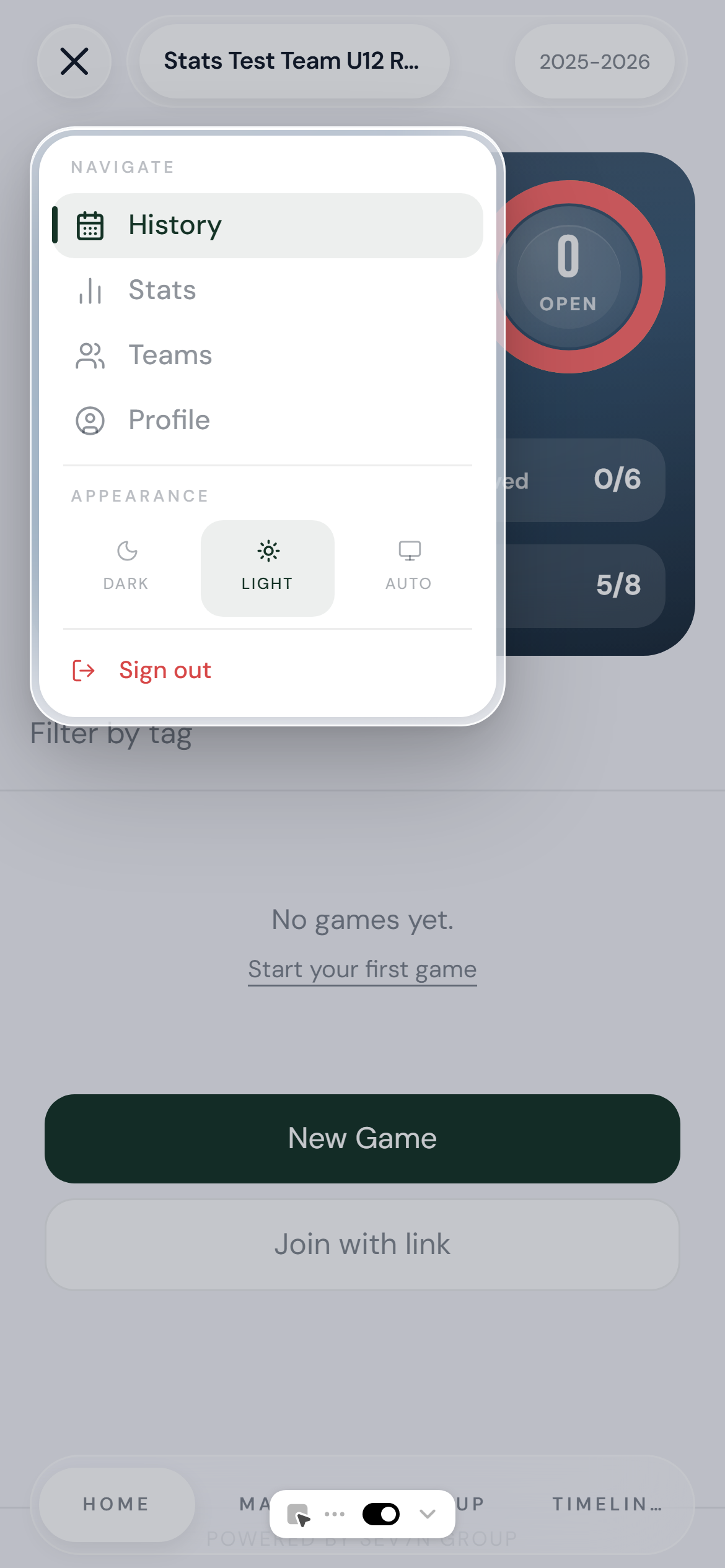
The ⋯ menu on any game card — Archive frees your slot without losing stats
How to permanently delete a game
Tap the three-dot menu on a game card and choose Delete Game. Read the confirmation carefully: deletion permanently removes the game and its events. Season totals are recalculated immediately. Only delete if you're sure; there's no undo.
Tip: If you just want to free up a slot, use Archive instead — it's reversible.
How to build a season map of everywhere you've played
When you create a game, fill in the Venue field — either search for the ground by name or tap the GPS button while you're standing at the pitch. SEV7N saves the coordinates silently in the background.
Once you have a few games with venues, open the Stats tab and tap Map. You'll see an interactive map with a pin for every ground you've played at this season. Pins are colour-coded: green = win, blue = draw, red = loss.
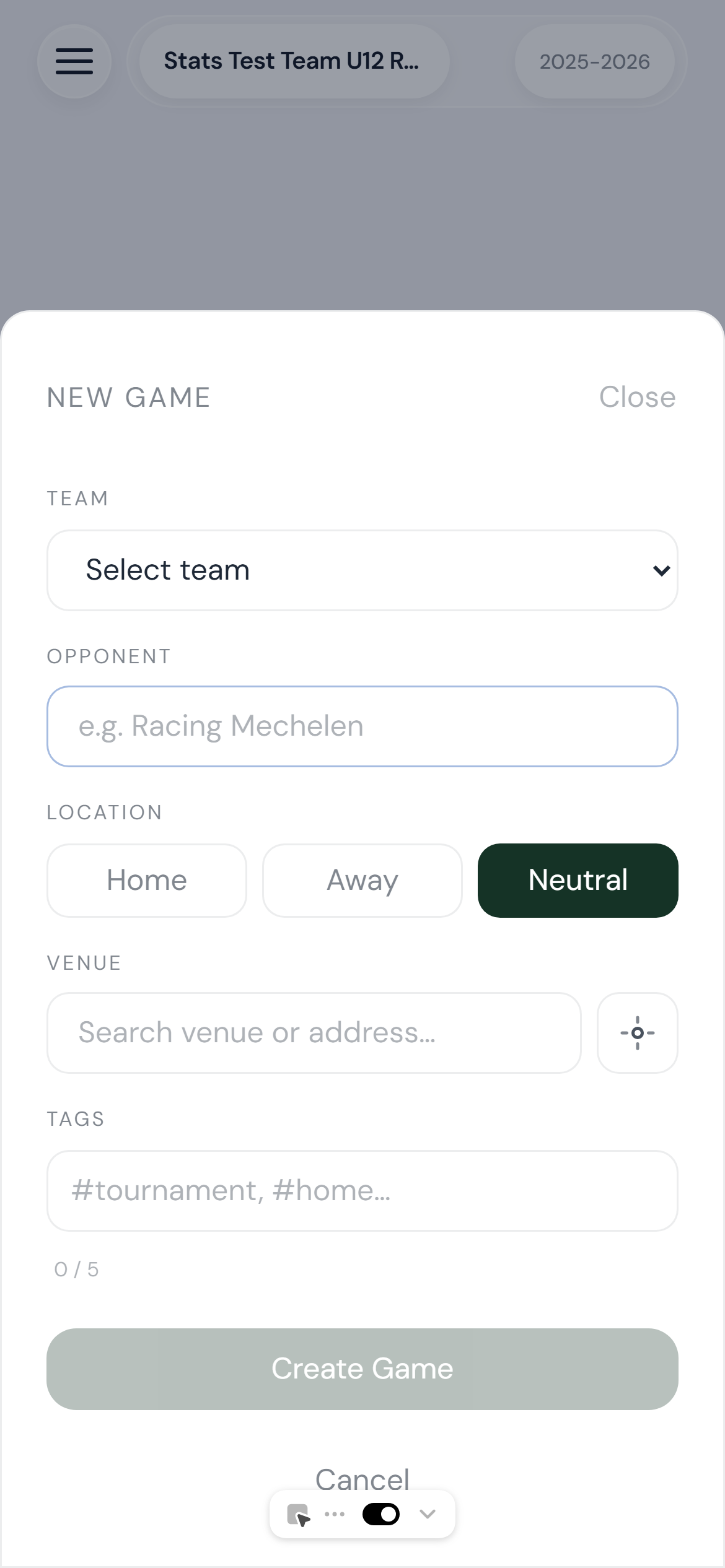
The Venue field in the game creation form — search or tap GPS to capture the ground location
How to tag a game (home, away, cup, etc.)
When creating a new game, you can add tags before starting. Built-in tags include #home and #away for filtering games by venue. You can also add custom tags like "cup", "friendly", "tournament", or anything meaningful to your setup.
Tags are filterable on the Games screen — tap the filter bar at the top to show only games matching a specific tag. Useful for separating league games from friendlies when reviewing stats.
How to add a match note or comment
Scroll down on the active match screen to find the Notes field. Type anything — weather conditions, a tactical observation, a memorable moment, referee issues. The note is saved with the game and visible later on the Timeline screen as a floating note above the event feed.
How to share a game for others to import
From the game menu, choose Share Game Link to generate an import link. Anyone who opens this link can import the full game — including all events and stats — into their own SEV7N account. Useful for sharing a full match record with a coach or another parent who wants the data in their own app.
Different from the viewer link (which shows a read-only live feed). The import link lets someone bring the game data into their account.
Teams & Setup
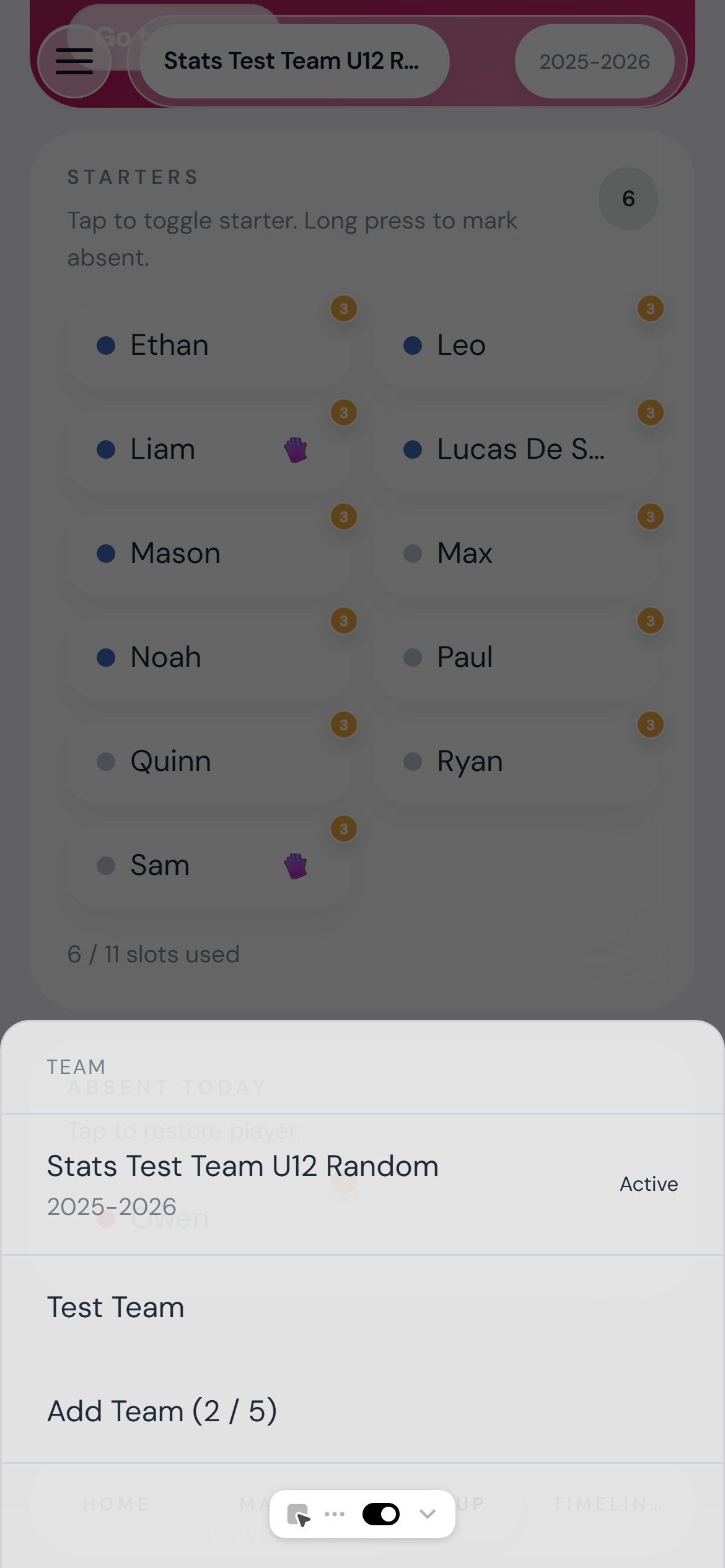
How to switch between teams
Tap the team name at the top of the home screen to open the Team Switcher. All your teams are listed — tap any one to make it active. Stats, games, and the lineup all switch instantly. Your last active team is remembered between sessions.
How to edit team name or season
Go to the Teams tab, select your team, and tap the edit icon (pencil) near the team name. You can update the team name, season label (e.g. "2025/26"), and team type. Changes apply immediately across all screens.
How to delete a team
Open the team settings and scroll to the danger zone. Tap Delete Team. Read the confirmation carefully: deleting a team removes its associated match data. This cannot be undone. If you're starting a new season, consider creating a new team (same name, new season label) rather than deleting the old one.
App & Device
Battery tips for long match days
Battery use varies with your device, screen brightness, network and enabled features. The match clock is based on saved timestamps; you do not need to keep the screen lit between events.
- Let your screen lock between events — the timer keeps running in the background
- Use the lowest screen brightness that remains readable
- Turn off Wi-Fi if you're purely on mobile data — reduces scanning overhead
- Close other open browser tabs before a long session
There is no guaranteed battery percentage per match. For a long match day, charge your phone beforehand and bring a power bank if needed.
What happens if you lose signal mid-match
The timer and local event logging keep working with no internet connection. Pending events are saved locally and retried when connectivity returns. Check that syncing has finished before signing out, clearing browser data or changing devices.
The live viewer feed pauses for remote viewers when you're offline, and catches up after pending events have synced. If signal is consistently poor at your ground, consider logging events normally and letting them batch-sync at the final whistle.
How to switch between dark and light mode
Go to the Profile tab and open Preferences. You can choose Dark, Light, or System (follows your device setting). The default is dark — optimised for outdoor use in various light conditions. Light mode is available for bright indoor environments or personal preference.
Export matches and player statistics
Open Profile → Export data for the available CSV downloads of season matches and player statistics for the active team. Archived matches are excluded. These files are not a complete account backup or a JSON export of all events; contact support if you need help with your data.
Stats & Sharing
How to view a single player's full stats breakdown
On the Stats screen, tap any player's row in the leaderboard to open their individual profile. This shows a full breakdown: goals, assists, minutes, cards, games played, free kicks, injuries — all in one view. You can also see their performance game by game.
How to filter stats by game type or tag
At the top of the Stats screen there's a filter bar. Tap it to filter the season stats by a specific tag — for example, show only league games (filter by your league tag) and exclude friendlies from the totals.
How to share a match card or stats image
After a game ends, open the Timeline screen for that match and tap the Share button. You can choose from a match summary card, a player highlight card, or a season stats card. Save or share the generated image using the options available on your device.
Share cards are available from the Timeline and Stats screens.
How to fix a logging mistake after the game
Open the Timeline tab for any game — past or present. Tap any event row to open the edit modal. You can change the event type, the player, or the timestamp. Tap the trash icon to delete the event entirely. Stats recalculate automatically after every edit.
You can also add a missed event by tapping the + button on the Timeline screen and entering a manual time.
Tap any event in the timeline to open this — change player, type, or minute, or delete it entirely
Something not covered here?
If there's a feature you can't find or a question not answered, open the app and use the feedback button in your Profile screen. You can also email hello@my.sev7n.app to report an unclear or outdated instruction.
Try It on Your Next Game
Download SEV7N for free on iOS or Android. Set up your team before kickoff, then try the relevant features during and after a match.