First-Time Setup: Team and Squad
You only do this once. After setup, creating new games takes a few steps.
Step 1: Create Your Account
Download SEV7N from the App Store or Google Play, sign in and follow the account setup prompts. You can also continue in your browser. Create a team or use an invitation to join an existing shared match or team. Player photos are optional.
Step 2: Create Your First Team
Tap Create Team from the home screen. You'll enter:
- Team name — e.g. "Tigers FC" or "The Lads Sunday League"
- Team type — club, academy, school, or other
- Season — e.g. "2025/26"
That's your team created. Now add players.
Step 3: Add Your Squad
Go to the team's squad list and add player names. First name is enough — "Jamie", "Marcus", "K. Osei" — whatever makes sense in context. You can add, edit, or remove players at any time during the season.
You don't need to add every player before your first game. Add your regular starters and fill in the rest as they appear.
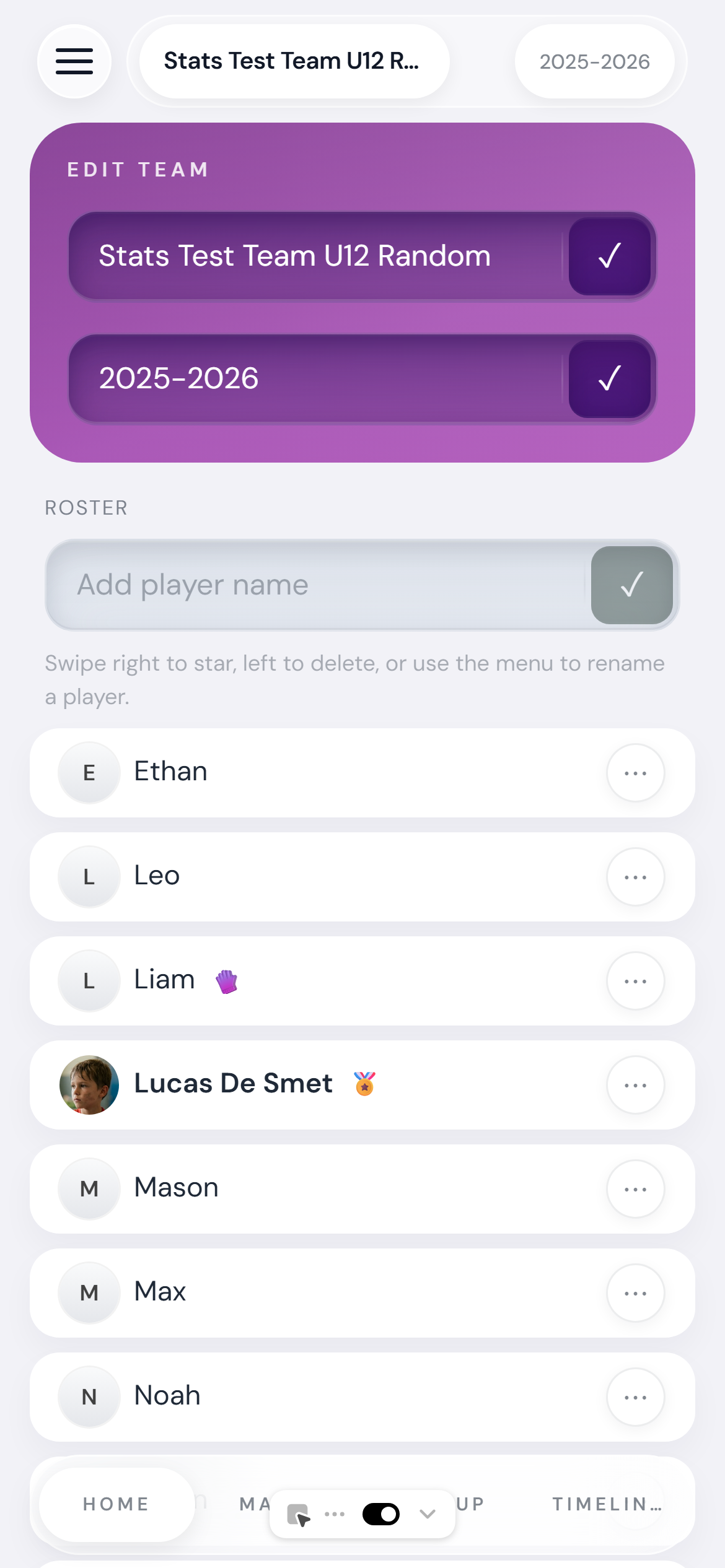
The squad roster — players with photos show a circular avatar, the fire icon marks a featured player
From the roster you can also:
- Add a photo — tap ⋯ next to any player → Add Photo. Photos show up as circular avatars everywhere that player appears in the app.
- Mark as goalkeeper — tap ⋯ → Toggle Goalkeeper. GK players are visually flagged on the lineup screen.
- Feature a player — tap ⋯ → Feature Player. Their stats get pinned to the top of the home dashboard — handy if you're a parent tracking your child's numbers.
- Rename or remove — both available from the same ⋯ menu. Renames propagate through all past game history.
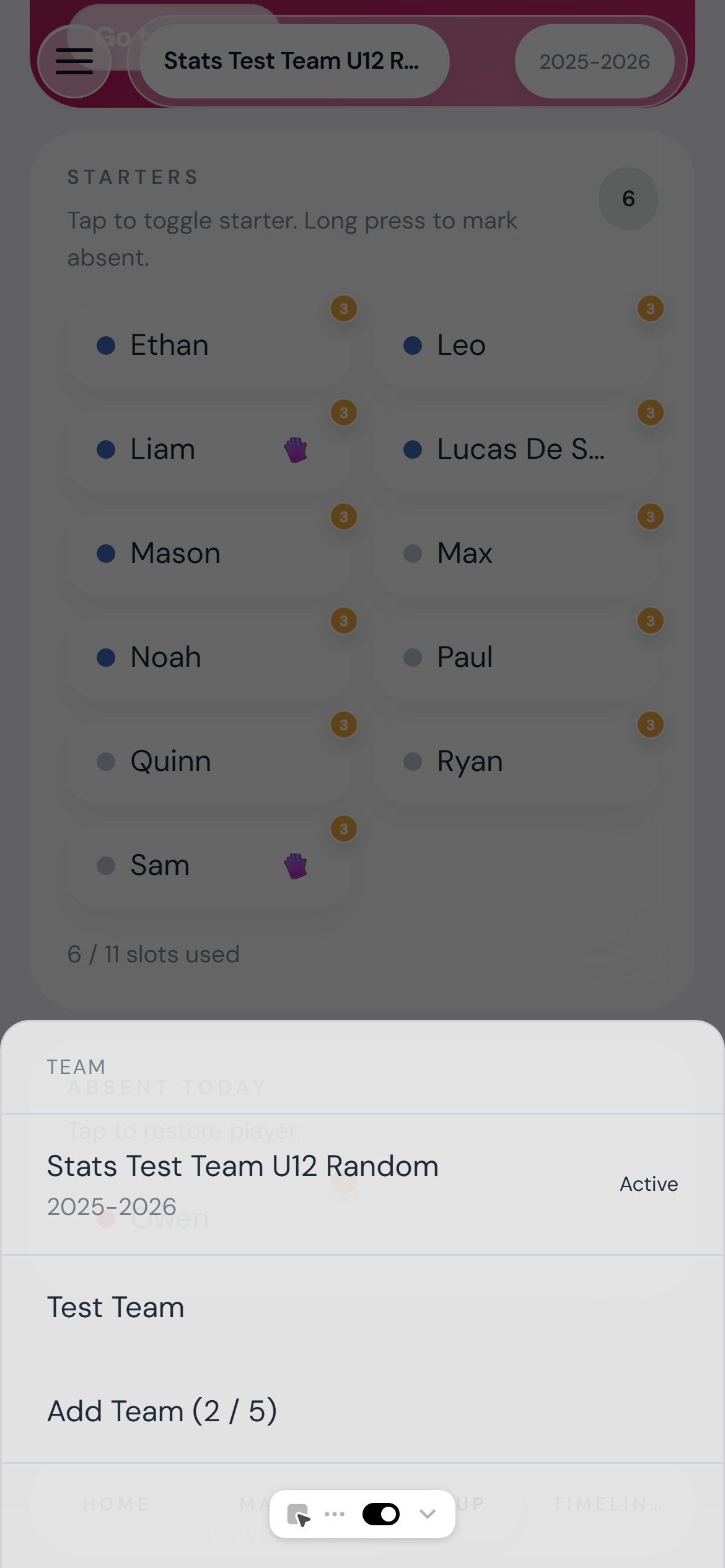
Tap ⋯ next to any player to open this menu — Add Photo, Feature Player, and more
Time Required
Prepare your squad before kickoff so you have time to check names and starters. Reuse the saved squad for later matches.
Creating a Game Before Kickoff
Before each match, you create a new game record. This takes a few steps and only needs to happen once per fixture.
What You Enter
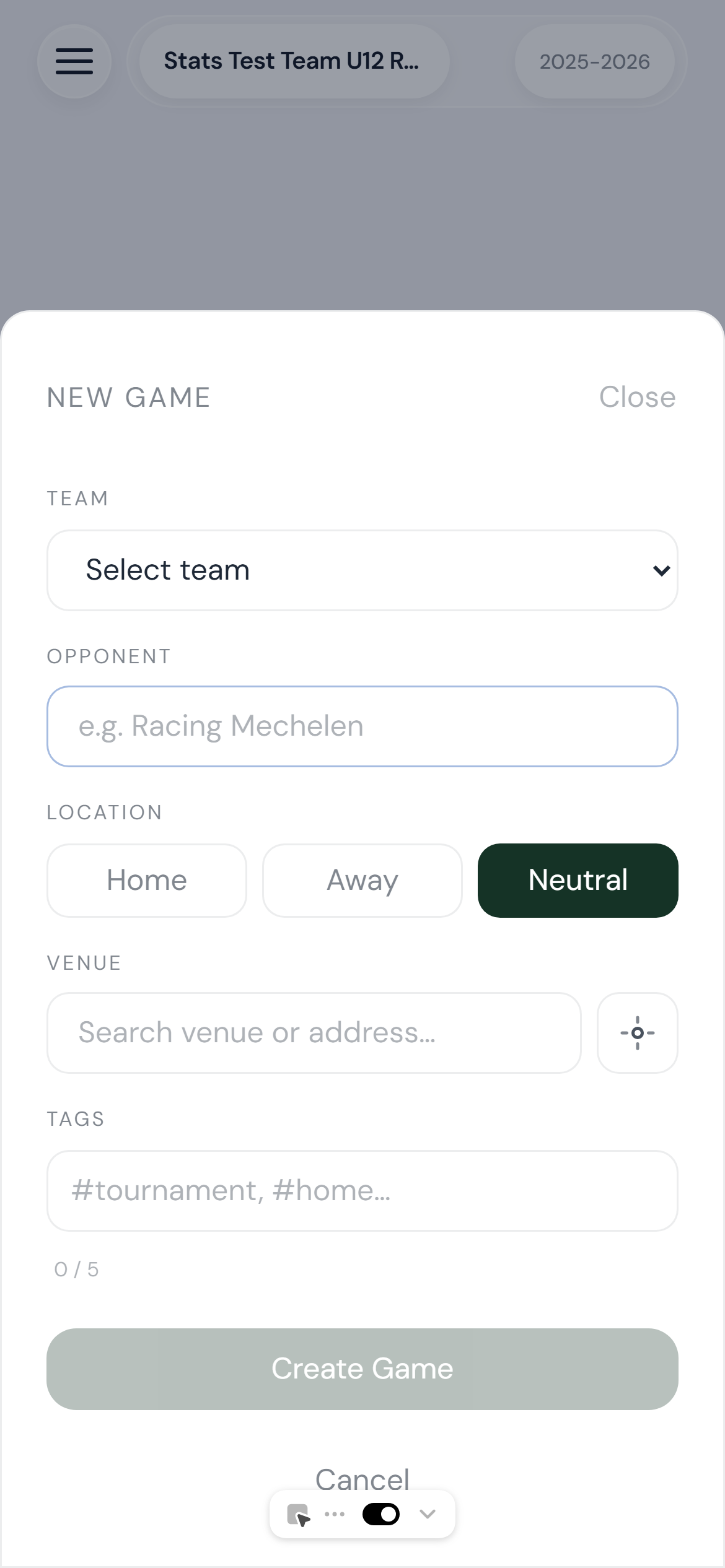
The game creation form — fill this in on the walk to the pitch
- Opponent name — "Northgate United", "The Foxes FC", whatever they're called
- Location — Home, Away, or Neutral.
- Venue — Search for the ground by name or address, or tap the GPS button to use your current location.
- Tags — Label the game however you like: "cup", "friendly", "tournament". Tags are filterable across the Games and Stats screens.
- Match duration — 90 minutes for most games, but SEV7N supports any duration.
- Starters — Pick from your squad who's starting today.
The Venue Field Builds Your Season Map
The Venue field is optional, but it's worth using. When you add a venue, SEV7N saves the exact coordinates. By the end of a season, those coordinates build a Season Map: an interactive map showing every ground you've played at, with each pin colour-coded by result.
Quick tip
Tap the GPS button in the Venue field right before kick-off while you're standing at the ground — it fills in the location automatically without you needing to search for it.
Setting Starters is Important for Minutes Tracking
The starters you set become the "on pitch" players at kickoff. When you log a substitution, SEV7N updates the pitch state and calculates both players’ recorded minutes from that point forward.
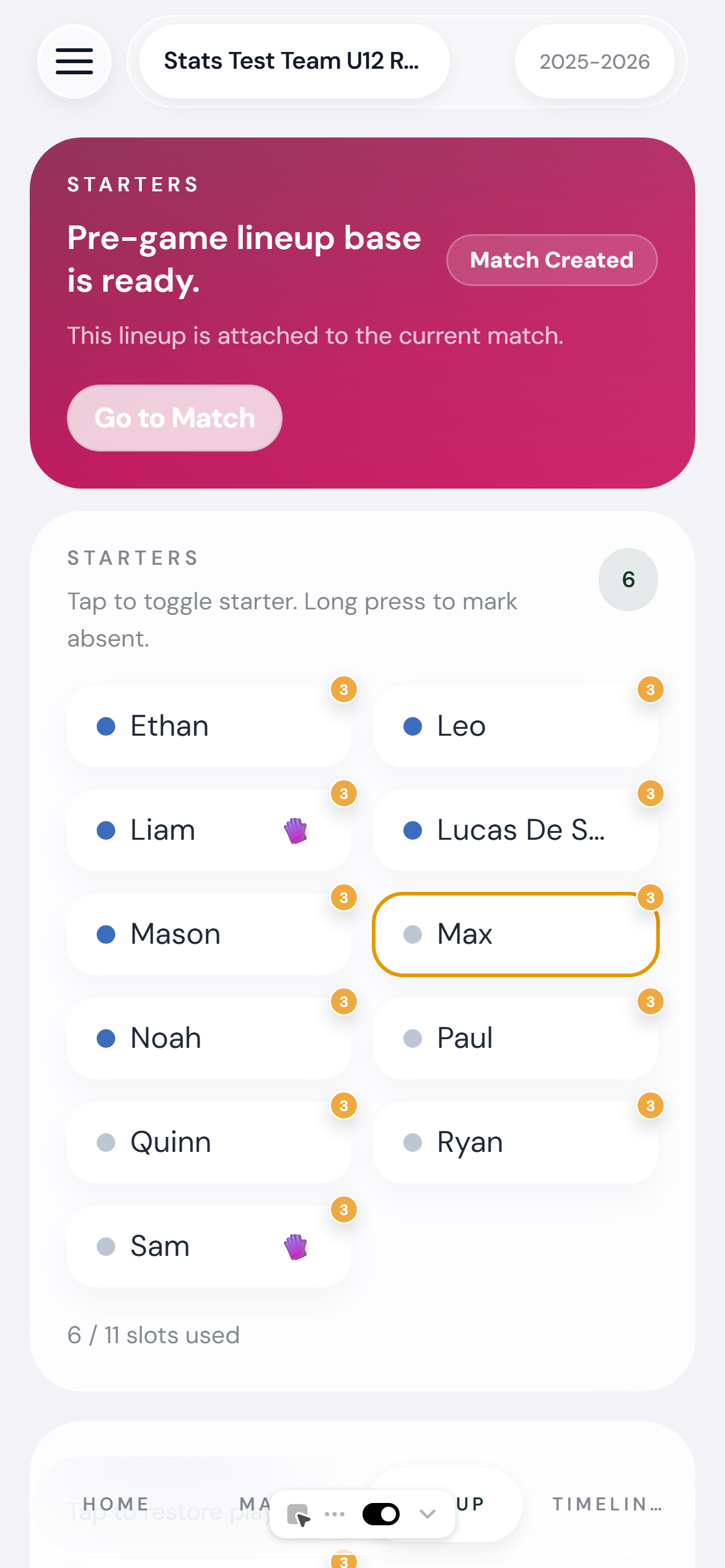
Pre-match lineup — assign starters, bench, and absent before kickoff
Match Day: The Live Tracking Flow
At kickoff, you tap Start Game. The timer begins. From that moment, everything you log is timestamped to the correct match minute.
The Match Screen Layout
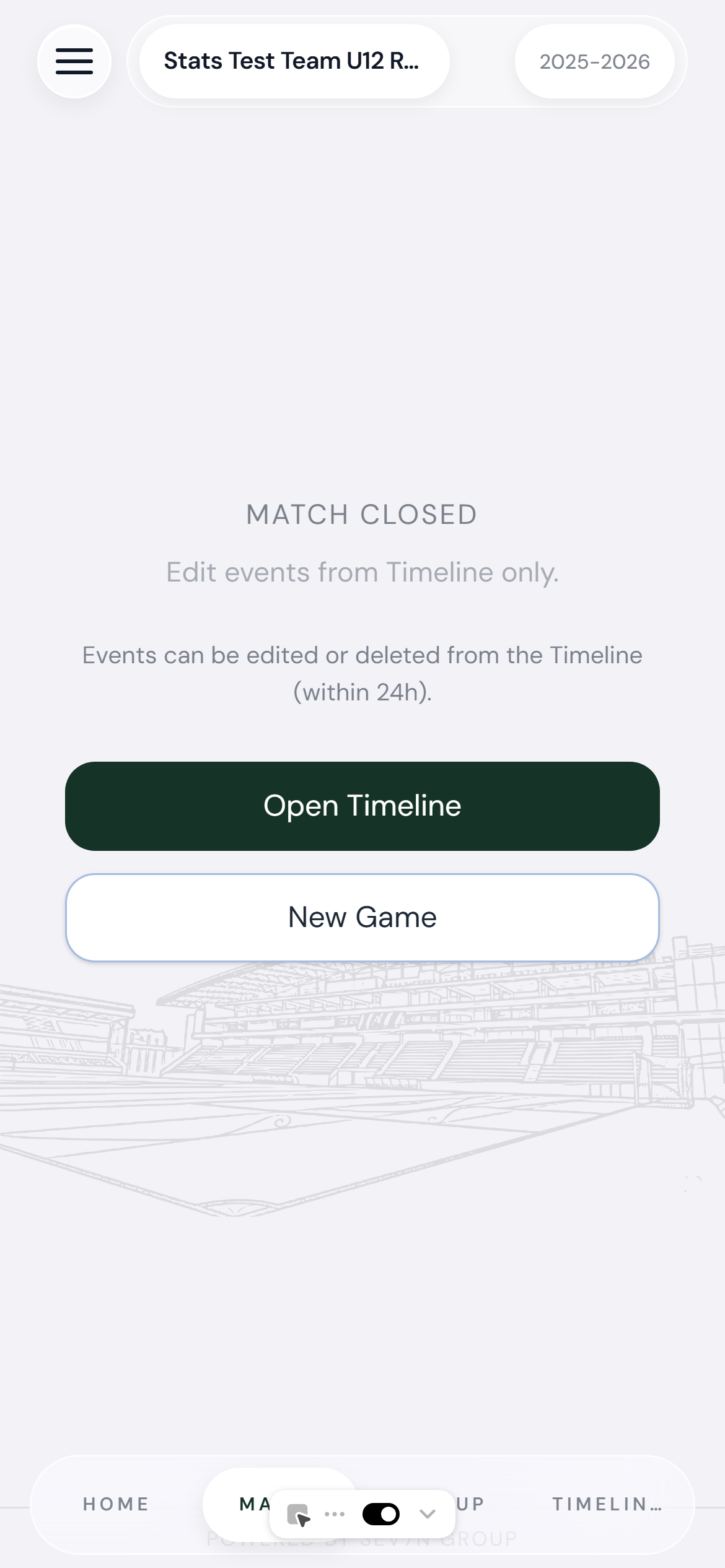
Live match screen — tap Goal/Conceded for quick team events, or tap any player chip for player-specific actions
- Score — large digits at the top, updated on every logged goal
- Match timer — current minute in real time, always running
- Pause button — top right. Stops the clock for half time or delays without losing timestamp accuracy
- Goal / Conceded buttons — quick-action buttons for team-level events
- ON PITCH player chips — one chip per player currently on the field. Tap any chip to open that player's action menu
- Quick Sub — below the pitch, lists bench players. Tap to sub one on quickly
Half Time
Tap Pause. The timer stops. Paused time is tracked separately so second-half timestamps stay accurate. Tap Resume at the second-half kickoff.
Shootouts
If the game goes to penalties, tap the shootout mode button. SEV7N switches to a dedicated penalty screen where each kick is logged as goal, miss, or save.
Logging Events: Goals, Cards, Subs
This is the core of SEV7N. There are two entry points depending on the event type.
Logging a Goal Your Team Scored (2–3 taps)
- Tap the green Goal button on the match screen
- Pick the scorer from the "WHO SCORED?" sheet — or tap "Skip" if unknown
- Pick the assister from the "WHO ASSISTED?" sheet — or skip
Check the scorer and assister before continuing. The score updates from the recorded event.
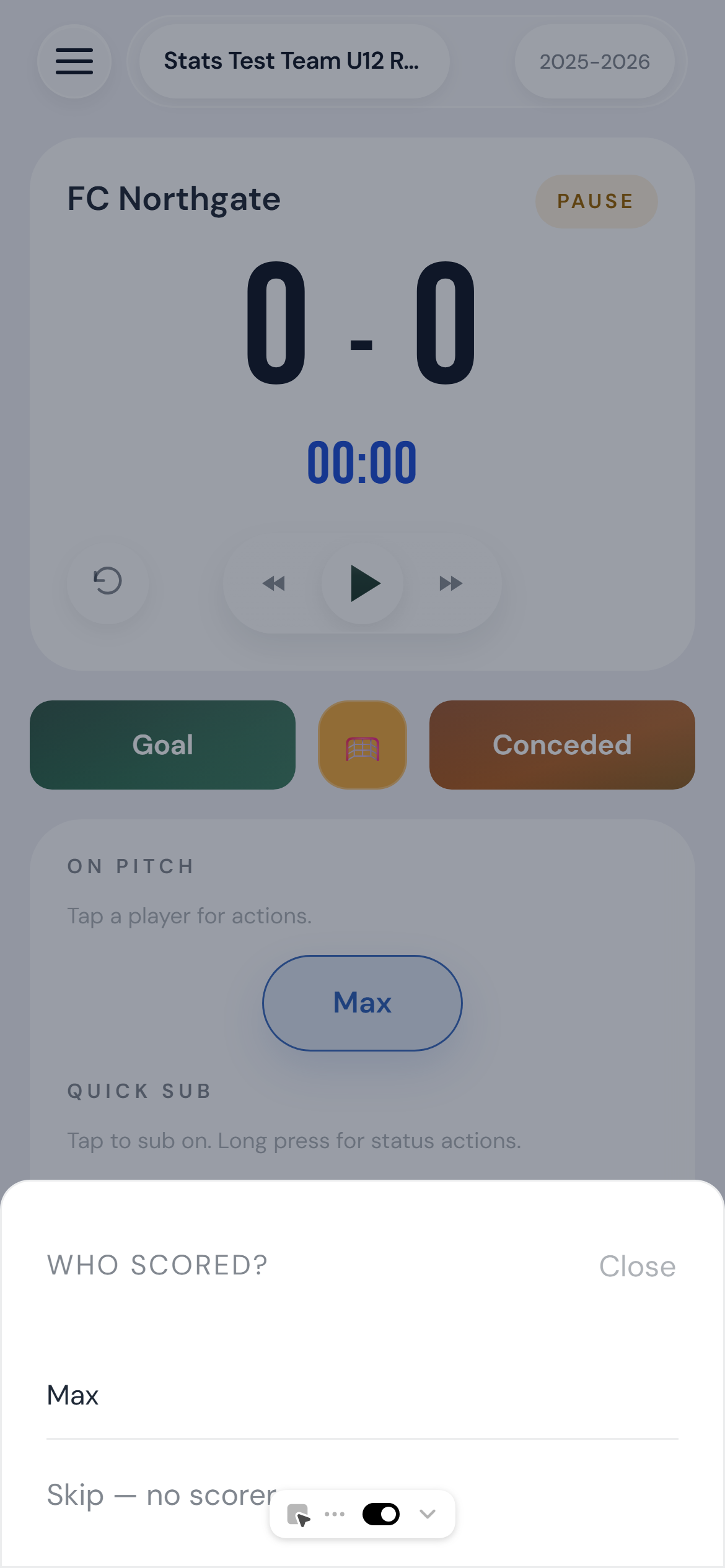
After tapping Goal → pick the scorer. One more step to pick the assister, then done
Logging an Opponent Goal (1 tap)
- Tap the brown Conceded button — score updates instantly, no player selection needed
Logging a Card, Injury, or Free Kick (2 taps)
- Tap the player's chip in the ON PITCH section
- Tap the event type: Yellow Card, Red Card, Injury, or Free Kick
Logging a Substitution (2–3 taps)
- Tap the player going off in the ON PITCH section
- Tap Sub Off in their action menu
- Pick the replacement from the bench list
Missed an event?
You can log events after the fact from the Timeline tab — including with a manually corrected timestamp. Check the corrected time and player before saving.
The Timeline: Your Full Match Record
Every event you log appears in the Timeline tab in chronological order. Switch to it from the bottom navigation while the game is running, or access it from any completed game in your history.
Editing From the Timeline
Tap any event row to open the edit sheet. You can change the event type, the player, adjust the timestamp, or delete the event entirely. Stats recalculate automatically after every edit.
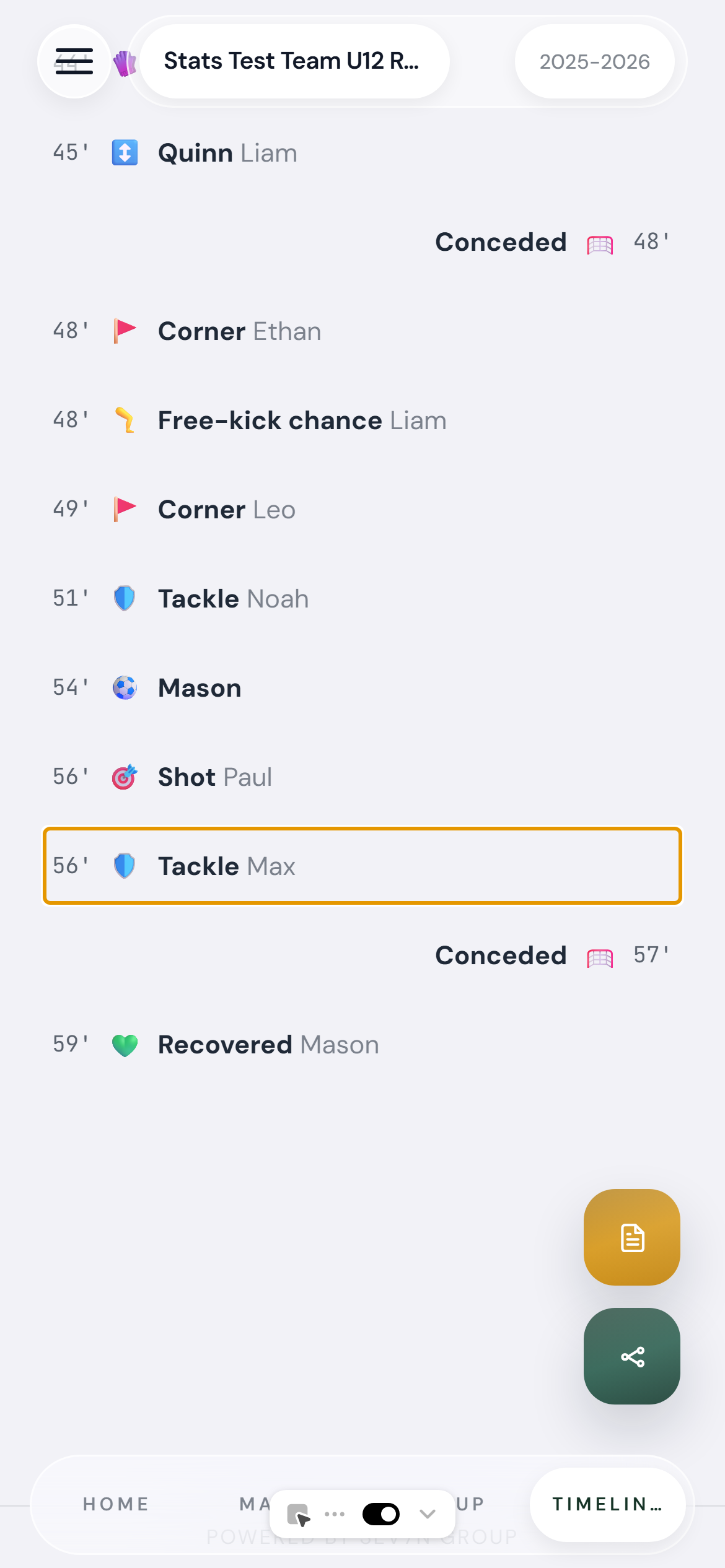
The timeline tab — every logged event in order, tap any row to edit
The event edit sheet — change type, player, or timestamp, or delete the event entirely. Stats recalculate instantly
The timeline is your match report
After the game, the timeline is the shareable record of what happened. It's also what powers the share cards — the match summary image is built directly from timeline data.
The Live Feed: How Sharing Works
Open the match’s sharing controls to create a viewer or editor invitation. Recipients need a SEV7N account to accept it. Check the expiry and sharing capacity shown in the app before sending it.
What Viewers See
- Live score and match clock
- Each event as it's logged — in real time
- Scrollable full timeline from kickoff
Recipients use the link to join as a viewer, then follow the live score and timeline from a modern browser. They do not get editor access unless the game owner invites them as an editor.
Viewer vs. Editor
After signing in and accepting a viewer invitation, recipients can follow the match without logging events. To give someone else logging access, invite them as an editor from the game settings. The app shows the sharing options available for your plan.
After the Game: Stats
Totals depend on the matches and events recorded, your access and selected filters. Archived games remain in History but are excluded from Stats and season exports until unarchived.
When the final whistle goes, tap End Game. Check the timeline for errors and let pending changes sync before relying on the shared statistics.
What Gets Calculated Automatically
- Player minutes — calculated from the recorded lineup, clock and substitutions
- Goals and assists — added to each player's running season total
- Cards — yellow and red, accumulated across the season
- Season leaderboard — updated immediately with this game's data
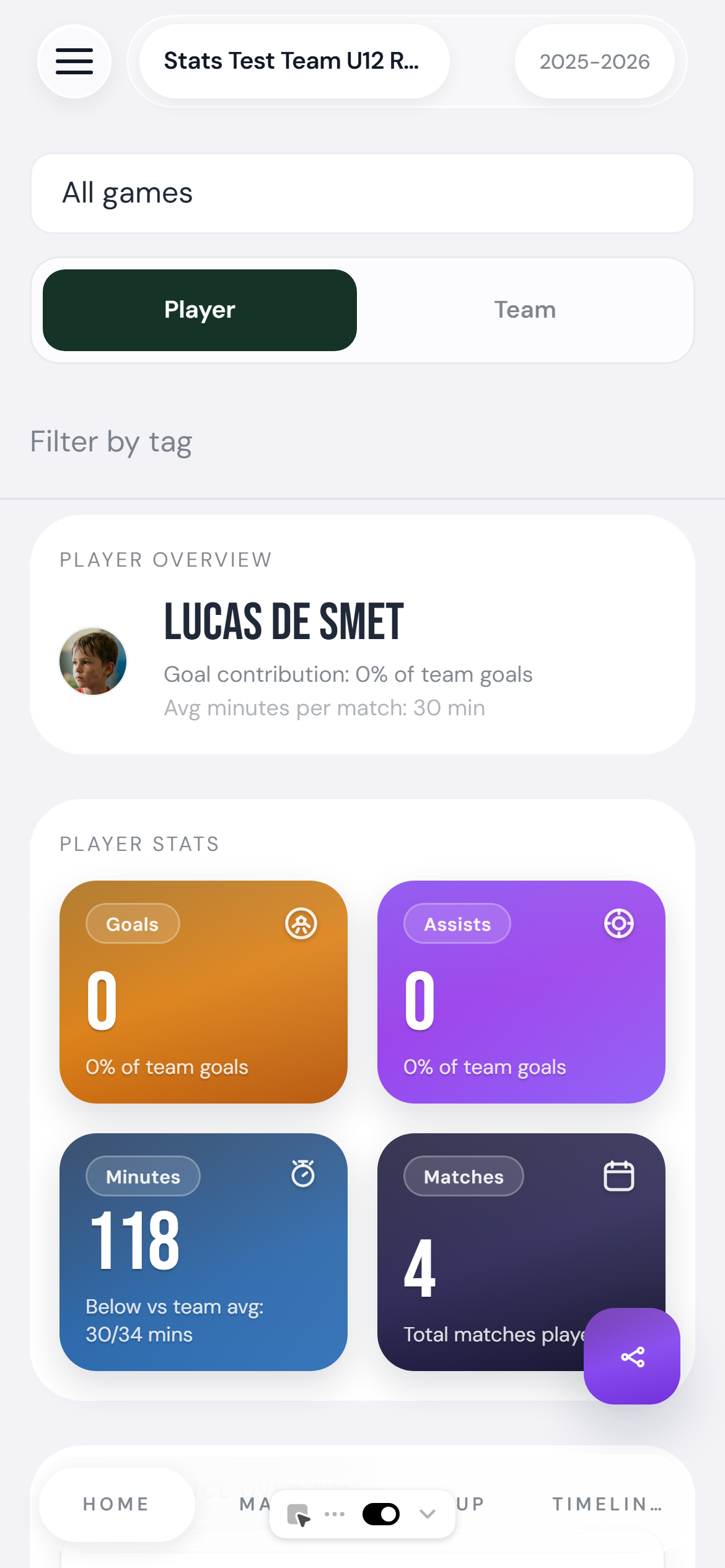
Individual player stats — tap any player's row in the leaderboard to open this view
Tracking Multiple Teams
SEV7N supports multiple teams under one account. Each team has its own squad, games, and stats — completely separate.
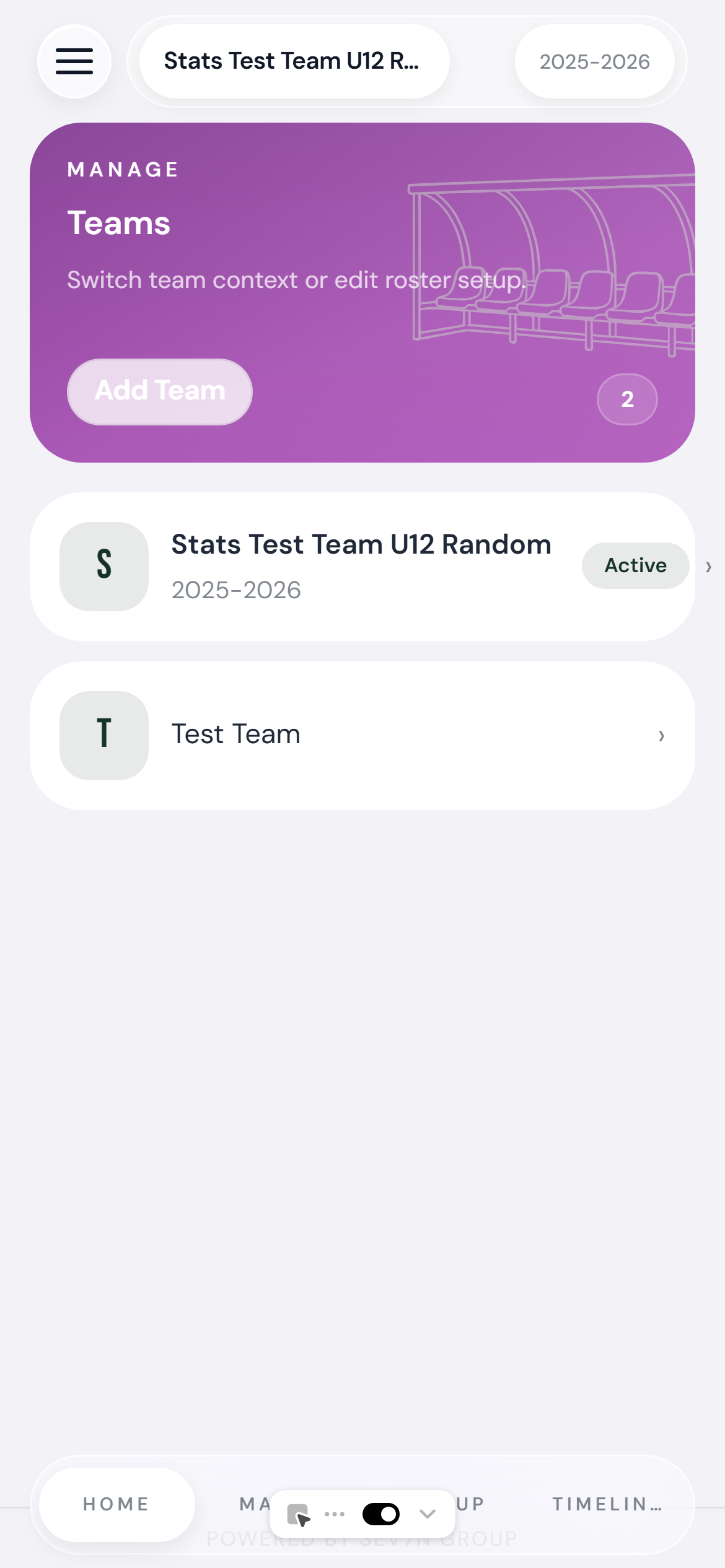
The Teams tab — all your teams in one place. Tap the team name at the top of any screen to switch instantly
New season, new team
At the start of each season, create a new team entry (same name, new season label like "2026/27") rather than editing the existing one. This keeps last season's full stats history intact and gives you a clean slate for the new campaign.
Battery Life and Performance
SEV7N makes deliberate choices to keep battery use low:
- No background GPS — location is only accessed if you tap the GPS button to detect the venue
- No video recording required — match tracking uses the events you enter
- Timestamp-based timer — the timer is calculated from a stored timestamp. Your screen can lock and the timer keeps working when you reopen the app
What About Offline?
SEV7N requires an internet connection to sync events in real time. If you lose signal mid-match, events you log will queue and sync automatically when signal returns. The timer and local logging keep working regardless.
Frequently Asked Questions
Do I need to download an app?
SEV7N is available on the App Store and Google Play. Download the app for match day, or continue in your browser. The iPhone and iPad app requires iOS 18 or later.
Can multiple people track the same game?
Yes. Game owners can invite editors to help log events and viewers to follow the timeline. The app shows the sharing options and current limits available for your plan.
What happens if I make a mistake logging an event?
Open the Timeline tab and tap any event to edit or delete it. You can also add missed events manually — including with a corrected timestamp. This works both during and after the game.
Does SEV7N work without internet?
The timer and local logging work without internet. Events will queue and sync automatically when your connection returns. Real-time sharing for viewers requires a connection on your end.
What's the free plan limit?
The free plan includes 3 active game slots and archive storage for up to 5 games. You can archive completed games to free up slots; the free archive holds up to 5 games. Premium (€2.49/month or €19.99/year) gives unlimited active games.
Can I track youth, futsal, or non-standard formats?
Yes. You set the match duration when creating a game — it can be any length (30, 45, 60, 90 minutes or custom). SEV7N works for any format where you want to track events and player time.
How do I handle a penalty shootout?
After full time (or extra time), tap the shootout mode option. The interface switches to a dedicated penalties screen where each kick is logged as goal, miss, or save. Shootout events are tracked separately from open-play statistics.
Can I export or back up my data?
Profile → Export data offers CSV downloads of season matches and player statistics for the active team. Archived matches are excluded. These are not a complete account backup; contact support for other data requests.
Does the share link expire?
Invite links are time-limited for security. The app shows the expiry when you create an invite; create a new one if a recipient cannot join in time.
What browsers does SEV7N support?
Any modern browser — Safari on iPhone, Chrome on Android, Firefox, Edge. No specific browser is required. SEV7N is designed for mobile first, but also works on tablet and desktop.
Ready to Track Your First Game?
Download the free app on iOS or Android. Sign in and prepare your team before kickoff.